How to Make an Even or Odd Number Finder Game in Scratch - Step-by-Step Math Tutorial for Kids
Scratch Game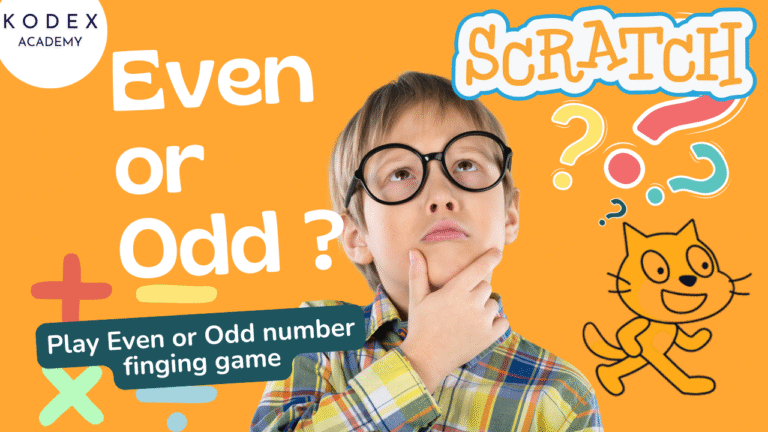
In today's digital age, coding has become more than just a technical skill—it's a new language of creativity and logic. Teaching children how to code has become just as important as teaching them math, reading, or science. When young learners are introduced to programming in a playful, hands-on environment, they not only gain exposure to computational thinking, but they also enhance skills in math, problem-solving, and decision-making.
What if you could combine these skills into one fun and educational experience? At Kodex Academy, we believe in the power of playful learning, and our latest tutorial — Even or Odd Number Finder using Scratch — does exactly that. This even odd tutorial introduces beginner math game in scratch, using modulo logic and if/else conditionals.
An Interactive Coding Project to Teach Kids the Basics of Math and Programming
👉 Watch the Full YouTube Tutorial Here:
Game Overview
What Is the Even or Odd Number Finder Game?
The concept is simple but powerful. The game randomly shows numbers on the screen, and the player must decide whether the number is even or odd. They click the correct button (Even or Odd), and the game gives instant feedback, including fun sounds and animations. To make this game more interesting, we can add more functionality in this game like the faster and more accurately the player responds, the more points they earn.
This game targets young learners aged 6–10 and helps them build a strong number sense while reinforcing critical thinking through coding.
Why Use Scratch for this Math Game?
Scratch is a block-based programming language designed especially for kids. It allows users to create interactive stories, games, and animations by snapping together code blocks like puzzle pieces. No typing errors, no complicated syntax — just pure logic and creativity.
Scratch is free, web-based, and widely used in classrooms around the world. Best of all, it teaches the fundamentals of coding in a visual, intuitive way that kids love.
What Will You Learn in This Project?
Before we dive into the creation process, let's identify what skills learners will develop while building this game:
- • Mathematical Thinking: Understanding and applying the concept of even and odd numbers.
- • Learn how to use Scratch's visual programming tools
- • Programming Basics: Learning about sprites, events, variables, motion, and event-driven programming.
- • User Experience Design: Making the game fun, clear, and engaging.
- • Creativity: Using sounds, colors, and animations to bring a project to life.
- • Build a working game with a user-friendly interface
- • Logical Reasoning: Use logic to evaluate number properties
- • Enhance the game with sound effects and animations
Getting Started: Create Even or Odd Number Finder Game
Basic Game Design with Scratch
Before jumping into the code, let's understand the goal and structure of the game.
The game prompts the user to enter a number and then tells them whether the number is even or odd using simple logic.
Concept Behind the Game:
In mathematics, even numbers are divisible by 2, meaning they leave a remainder of 0. So if number % 2 == 0, it's even. Otherwise, it's odd. This core logic becomes the foundation of our interactive Scratch program.
Blocks We'll Use:
- • Events: To start the game
- • Sensing: To ask the user for input
- • Variables: To store the user input
- • Operators: To perform math operations
- • Control: To run conditional logic
- • Looks: To show results on screen
How to Use Sprites, Sounds, and Motion
Scratch projects are built using sprites, which are visual elements that can interact, talk, move, or respond to user actions.
Step-by-Step Sprite Setup:
- Delete the default cat sprite (if not needed).
- Add a new sprite to act as your "Host" character — a robot, cartoon kid, or anything fun!
- Add Text Labels or Buttons if you want to make it more interactive.
- Add background sounds to increase engagement:
- Use positive reinforcement sounds like claps or cheers.
- You can add motion such as jumping or bouncing for correct answers.
Though this specific game focuses on logic and user input, enhancing it with animated sprites and motion makes it visually appealing for children.
Basic Scratch programming concepts
Let's break down the major components that form the core of this game.
Starting the Program
Use an event block to begin:
This tells Scratch to run the code when the green flag is clicked.
Asking the User for Input
Use the sensing block:
This displays a prompt and waits for the user to type a number. The response is stored in Scratch's built-in answer variable.
Creating a Variable to Store the Number
Go to Variables > Make a Variable > Name it number. Then use:
This saves the user's response to the number variable for later use.
How to Use Conditionals (if/else)
Now that we have the number, we'll use if/else logic to determine if it's even or odd.
What Are Conditionals?
Conditionals let the computer make decisions based on whether something is true or false.
In Scratch:
// do this
else
// do that
end
Our Condition:
We use a combination of operator blocks:
- • mod: To get the remainder
- • =: To check if remainder is 0
Here's how the condition looks:
say [This number is even.] for 2 seconds
else
say [This number is odd.] for 2 seconds
end
This tells Scratch to check whether the remainder of the number divided by 2 is zero.
Identifying Even vs. Odd Numbers Using Logic
Mathematical Logic Recap:
- • A number is even if divisible by 2 (i.e., no remainder).
- • A number is odd if there's a remainder of 1 when divided by 2.
This is a great way to introduce modulo operations (%) to children in a visual and interactive format.
In Scratch Terms:
- • Use the mod block from the Operator section.
- • Nest it inside an equals block.
- • Then insert it into the condition.
This is how your complete logic looks in blocks:
say [This number is even.] for (2) seconds
else
say [This number is odd.] for (2) seconds
end
This logic is easy to implement and helps kids visually see how decisions are made in code.
Creating User-Friendly and Engaging Educational Games
Tips for Making the Game Kid-Friendly:
- Big, Bright Text: Use easy-to-read fonts and colors.
- Voice Feedback: Record or add sound clips to read the results aloud.
- Friendly Characters: Choose animated sprites that children can relate to.
- Clear Instructions: Display a start message like:
- "Click the green flag to start."
- "Type a number to find out if it's even or odd."
Example Flow:
- User clicks green flag.
- Program asks: "Type your number."
- User types
8. - Program responds: "This number is even." with a smiley.
- Sprite claps or dances.
Each loop can reset when the green flag is clicked again, creating a seamless experience.
Bonus: Adding Sound Effects and Animations to Enhance Gameplay
Sound and animation add fun and energy to the learning experience.
Add Sound:
- Go to the Sounds tab in the sprite panel.
- Choose fun sounds like:
- Cheer (for correct input)
- Buzz (for wrong input, if extended with a quiz feature)
- Use:
Add Animation:
- Use size or motion to animate:
change size by 10
wait 0.1 seconds
end
repeat 5
change size by -10
wait 0.1 seconds
end
You can also use costume switching for animated effects:
Animations can celebrate correct answers or display visual cues for wrong answers — enhancing emotional engagement and memory retention.
Experimenting Further (Extension Ideas)
Want to make your game more advanced? Here are some ideas:
- • Add a scoring system: Each correct answer earns points.
- • Create levels: Harder levels can include even/odd identification under time pressure.
- • Leaderboard: Record high scores using cloud variables (advanced Scratch feature).
- • Math quiz: Mix other math questions in between (e.g., "Is this a prime number?").
Summary: What Kids Learn from this Math Game in Scratch
| Math Concepts | Even vs. Odd numbers |
|---|---|
| Logical Thinking | Understanding conditions and decision-making |
| Programming | Events, variables, conditionals, and input handling |
| Creativity | Designing characters, responses, and sound effects |
| Problem Solving | Debugging issues and refining the game |
This game not only supports computational thinking but also reinforces foundational math skills — all in an engaging and interactive way.
Final Thoughts
Creating the Even or Odd Number Finder in Scratch is an excellent way to introduce young learners to both coding and core math logic. It's simple, intuitive, and full of opportunities for creativity and deeper learning.
By combining visuals, interaction, logic, and storytelling, this project makes abstract math concepts come alive. Scratch gives kids the confidence to build, test, and share their own creations — empowering them as both learners and creators.
So grab your laptop, open Scratch, and let's get coding! Make sure to experiment, add your own twist, and most importantly — have fun!
Call to Action
- Don't forget to check out the full video tutorial by Kodex Academy here: Watch the full – Even or Odd Number Finder | Scratch Game by Kodex Academy
- Like, comment & share the video
- Visit kodexacademy.com
- Subscribe to the Kodex Academy YouTube channel for deeper Scratch content.
Happy coding with Kodex Academy! 🚀