How to Create a Thirsty Crow Story in Scratch | Animation Story in Scratch for Kids
Scratch Game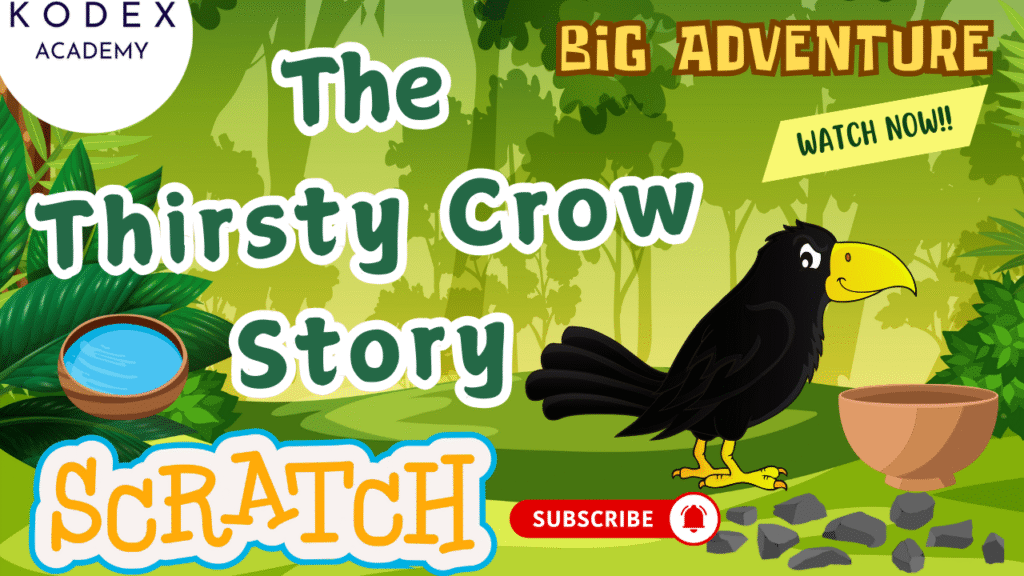
Introduction to Creating the Thirsty Crow Story in Scratch
Scratch is an amazing platform for creating animated stories that teach valuable lessons. In this tutorial, you'll learn how to recreate the classic "Thirsty Crow" story (also known as "The Crow and the Pitcher") using Scratch's animation tools, sprites, and storytelling features. This project combines animation, logic, and storytelling to create an engaging educational experience for kids.
What You Will Learn:
This comprehensive guide teaches you how to:
- ✅ Create animated stories in Scratch using sprites and backgrounds
- ✅ Use costume changes for character animation
- ✅ Program sprite movements and interactions
- ✅ Use broadcast messages to control story sequencing
- ✅ Add sound effects and voice narration
- ✅ Create visual effects like water rising animation
- ✅ Use variables to track story progress
- ✅ Add interactive elements to your story
This project is perfect for beginners learning Scratch animation, storytelling, and basic programming concepts.
👉 Watch the Full YouTube Tutorial Here:
How to Create a Thirsty Crow Story in Scratch | Animation Story Tutorial | Kodex Academy
The Classic Thirsty Crow Story
The Thirsty Crow is a famous Aesop's fable that teaches problem-solving and perseverance. In this story:
- A thirsty crow finds a pitcher with water at the bottom
- The water level is too low for the crow to drink
- The clever crow drops pebbles into the pitcher one by one
- As pebbles are added, the water level gradually rises
- Finally, the water reaches a level where the crow can drink
- The story demonstrates intelligence, patience, and creative problem-solving
This Scratch project brings this timeless story to life with animation, sound effects, and interactive elements.
Prerequisites for This Tutorial
Before starting this project, you should have:
- Basic familiarity with the Scratch interface
- Understanding of sprites, costumes, and backdrops
- Knowledge of basic blocks like motion, looks, and events
- A Scratch account (optional but recommended for saving projects)
If you're new to Scratch, don't worry! This tutorial includes detailed explanations for each step.
Step-by-Step Guide to Creating the Thirsty Crow Story
1. Set Up Your Scratch Project
Let's start by creating a new Scratch project and preparing our workspace:
- Go to scratch.mit.edu and create a new project
- Delete the default cat sprite by right-clicking on it and selecting "delete"
- Choose a background that fits the story theme (like "Garden" or "Nature")
- Rename your project to "Thirsty Crow Story"
This gives us a clean starting point for our animated story.
2. Create the Crow Sprite
The crow is the main character in our story. Let's add it to our project:
- Click the "Choose a Sprite" button
- Search for "crow" or "bird" in the sprite library
- Select a crow sprite (or any bird sprite that looks suitable)
- Rename the sprite to "Crow" in the sprite panel
- Position the crow at the left side of the stage (around x: -150, y: 50)
The crow sprite will be animated throughout the story to show different actions.
3. Add the Pitcher Sprite
The pitcher is where the water is stored. Let's add it:
- Click "Choose a Sprite" again
- Search for "pitcher", "jug", or "bottle"
- Select a pitcher or water jug sprite
- Rename it to "Pitcher"
- Position it in the center of the stage (around x: 0, y: -50)
- Resize it appropriately to fit the scene
The pitcher will remain stationary but will show visual changes as pebbles are added.
4. Create the Water Sprite
We need water inside the pitcher that will rise as pebbles are added:
- Click "Choose a Sprite"
- Search for "water" or create a blue rectangular sprite
- If creating your own, use the paint editor to draw a blue rectangle
- Rename it to "Water"
- Position it at the bottom of the pitcher
- Make it semi-transparent so it looks like water
The water sprite will animate upward as the story progresses.
5. Add Pebble Sprites
The pebbles are what the crow will drop into the pitcher:
- Click "Choose a Sprite"
- Search for "rock" or "stone"
- Select a small rock sprite
- Rename it to "Pebble1"
- Create clones or duplicates for additional pebbles (Pebble2, Pebble3, etc.)
- Position them near the crow initially
Each pebble will be animated falling into the pitcher one by one.
6. Program the Story Start
Let's add the initial setup and story beginning:
set [story step] to [1]
broadcast [start story]
show
go to x: -150 y: 50
switch costume to [crow standing]
say [I'm so thirsty!] for 2 secs
Explanation:
- We use a variable "story step" to track progress
- The broadcast message starts the story sequence
- The crow appears and expresses thirst
7. Animate the Crow Flying to the Pitcher
When the crow sees the pitcher, it should fly toward it:
wait 3 secs
say [What's this? A pitcher with water!] for 3 secs
repeat 30
move 5 steps
next costume
end
point towards [Pitcher]
go to [Pitcher]
say [The water is too low! I can't reach it.] for 3 secs
Explanation:
- The crow notices the pitcher and flies toward it
- Costume changes create a flying animation
- The crow realizes the water is too low to drink
8. Program the Pebble Dropping Animation
The crow's clever solution is to drop pebbles into the pitcher:
repeat 5
broadcast [drop one pebble]
wait 2 secs
broadcast [water rise]
wait 1 secs
end
say [That worked! Now I can drink!] for 3 secs
Explanation:
- The crow drops 5 pebbles one by one
- Each pebble drop triggers a water level increase
- The crow celebrates the successful solution
9. Animate the Water Rising
As pebbles are added, the water level should gradually rise:
change y by 10
change size by 5
Explanation:
- The water sprite moves up and grows slightly
- This creates the visual effect of rising water
- The change happens gradually with each pebble
10. Add Sound Effects and Final Animation
Let's add audio and the story conclusion:
play sound [cheer]
say [Ahh! That was refreshing!] for 3 secs
switch costume to [crow happy]
broadcast [show moral]
Explanation:
- Sound effects enhance the story experience
- The crow shows happiness after drinking
- A final message teaches the story's moral
Summary: What You've Learned
Congratulations! You've successfully created an animated version of the Thirsty Crow story in Scratch. This project taught you:
- How to create multi-sprite animations
- Using broadcast messages for story sequencing
- Costume changes for character animation
- Variables for tracking story progress
- Sound effects and visual effects
- Problem-solving through programming
The Thirsty Crow story teaches us that with patience and clever thinking, we can solve even the most challenging problems!
Learn More Scratch Tutorials
Ready for more Scratch projects? Check out these related tutorials:
- How to Make a Platformer Game in Scratch
- How to Make a Basketball Game in Scratch
- How to Make a Math Racing Game in Scratch
- How to Make a Wall Clock in Scratch
Each tutorial builds on the skills you've learned here!