How to Make Day & Night Animation in Scratch (Step-By-Step Full Tutorial)
Scratch Tutorial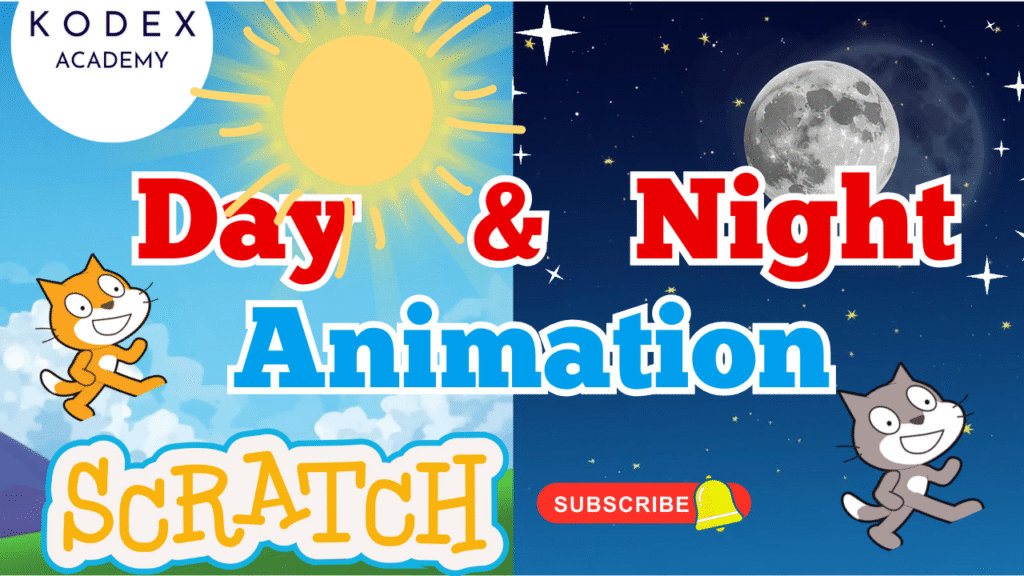
Introduction – Day & Night Animation in Scratch
If you've ever wondered how to make day and night animation in Scratch or wanted to bring your stories and games to life with realistic sky transitions, this tutorial is perfect for you! Scratch is widely known for its beginner-friendly block-based programming, but with just a few smart techniques, you can create impressive visual effects like sunrise, sunset, and moonlit night scenes—all without writing traditional code.
In this step-by-step guide, inspired by the Kodex Academy YouTube tutorial, you'll learn how to build a dynamic day-night cycle animation in Scratch. We will create an engaging Day-Night animation effect featuring:
- 🌅 Sunrise + Sunset
- ☀️ Sun & Moon Gliding Motion
- 🏃 Walking Character (Snowman)
- 🌌 Background transitions
- 💡 Brightness change
- ⭐ Stars Twinkling
- 🎵 Background music
What You Will Learn:
- ✅ Import / Prepare Backdrops
- ✅ Creating costumes for walking animation
- ✅ Coding sprite movement
- ✅ Creating sun & moon glide animation
- ✅ Switching backdrops
- ✅ Brightness effects
- ✅ Adding stars with twinkle effect
- ✅ Adding background sound
- ✅ Extra enhancements & improvements
By the end of this blog, you'll be able to:
- 🎨 Design custom backdrops
- 🎭 Animate characters and objects
- 🌅 Create smooth day-to-night transitions
- ✨ Add glowing stars and visual effects
- 🎵 Enhance your project with sound and extra animation features
So grab your creativity and let's dive into this fun Scratch programming animation tutorial to make your very own sunrise-to-sunset day and night cycle!
👉 Watch the Full YouTube Tutorial Here:
How to Make Day & Night Animation in Scratch | step by step full tutorial by Kodex Academy
Coding – Day & Night Animation in Scratch
1. Setting Up Backdrops – Day & Night
- Go to Stage → Backdrops
- Upload:
- • Day Background
- • Night Background
- Convert them to Vector
- Center them
If you need free sky backgrounds, you can explore: https://www.pixabay.com or https://www.pexels.com
2. Adding Character & Creating Walking Animation (Sprite Costumes)
- Delete default cat
- Choose new sprite → Snowman
- Duplicate its costume 4–5 times
- Edit each duplicate → Move: Legs forward/back, Hands forward/back
Now your snowman looks like it's walking when costumes loop.
Snowman Code (Walking + Screen Reset + Day → Night Switch)
go to front layer
go to x: -200 y: -120
switch backdrop to [day v]
forever
move (10) steps
wait (0.2) seconds
next costume
if
next backdrop
go to x: -200 y: -120
end
end
• The sprite walks
• Changes costumes → walking animation
• At end → background changes → resets to start
3. Add Sun Sprite — With Glide Motion
- Add Sun sprite
- Resize to around 50%
- Move to starting position (bottom-left)
Sun Code (Day Appearance + Glide Sunrise–Sunset)
if
show
else
hide
end
go to x: -240 y: 40
forever
glide (2) secs to x: -160 y: 80
glide (2) secs to x: -80 y: 120
glide (2) secs to x: 0 y: 160
glide (2) secs to x: 80 y: 120
glide (2) secs to x: 160 y: 80
glide (2) secs to x: 240 y: 40
end
• Smooth sunrise → peak → sunset
• Follows natural arc
4. Create Moon Sprite
- Paint a circle
- Fill with gray/white
- Name "Moon"
Moon Code (Night Appearance + Glide)
Same as sun but reversed:
if
show
else
hide
end
go to x: -240 y: 40
forever
glide (2) secs to x: -160 y: 80
glide (2) secs to x: -80 y: 120
glide (2) secs to x: 0 y: 160
glide (2) secs to x: 80 y: 120
glide (2) secs to x: 160 y: 80
glide (2) secs to x: 240 y: 40
end
• Appears during night
• Follows same path
5. Add Ambient Music
Choose sound → Xylo3
forever
play sound [xylo3 v] until done
end
6. Brightness Effect (Sunrise → Sunset → Moonrise)
Switch backdrop → Change brightness
set [brightness v] effect to (0)
wait (7) secs
change [brightness v] effect by (-25)
when backdrop switches to [night v]
set [brightness v] effect to (0)
wait (7) secs
change [brightness v] effect by (25)
• Sunset dims
• Moonrise brightens
7. Stars — Twinkling Effect
- Choose star sprite
- Duplicate 2–3 times
- Place randomly
Stars Code (Night Only + Twinkle)
hide
when backdrop switches to [night v]
show
go to (current-position)
forever
set [ghost v] effect to (0)
repeat (100)
change [ghost v] effect by (10)
wait (0.1) secs
end
repeat (100)
change [ghost v] effect by (-10)
wait (0.1) secs
end
end
• Twinkling stars
• Appear only at night
Final Output
- • Walking character
- • Day → Night → Day loop
- • Sun + Moon movement
- • Stars twinkling
- • Brightness shifts
- • Background music
Enhancement Features (Advanced)
Here are optional bonus upgrades you can add:
1. Clouds Floating Animation
forever
glide (5) secs to x: 240 y: 160
go to x: -240 y: 160
end
2. Day/Night Speed Control (Add Slider)
Add variable: speed
set [speed v] to (2)
forever
glide (speed) secs to x: ...
end
3. Automatic Weather Change
Random brightness flicker:
change [brightness v] effect by (pick random (-10) to (10))
wait (0.2) secs
end
4. Background Animals (Birds Moving)
forever
move (10) steps
if
go to x: -240 y: 40
end
end
Additional Helpful Links
| Scratch Website | https://scratch.mit.edu |
| Download Scratch | https://scratch.mit.edu/download |
| Free Background Images | https://pexels.com |
| Free Graphics | https://pixabay.com |
Complete Project Summary
This Scratch day–night animation tutorial gives beginners and intermediate learners the power to bring realistic environmental effects inside their Scratch projects.
You learned:
- • Costume animation
- • Gliding sprites
- • Backdrop switching
- • Brightness adjustments
- • Twinkling stars
- • Background sound
These can easily be integrated into:
- 🎮 Games
- 📖 Stories
- 🎥 Animations
- 🖼️ Background environments
Conclusion
Creating a day and night animation in Scratch is a fun and rewarding way to explore the possibilities of visual storytelling and game design using simple block programming. With just a few sprites, backdrop transitions, brightness effects, and glide animations, you can build a dynamic world where the sun rises and sets, the moon glides through the sky, and stars shimmer beautifully at night.
This project not only helps beginners understand key Scratch concepts like motion, looks, loops, and events—but also inspires creativity for building more advanced Scratch games, stories, and backgrounds. From walking characters to twinkling stars, each element enhances the scene and makes it more engaging and realistic.
You can continue improving your animation by adding features such as moving clouds, background weather effects, or interactive gameplay elements. These enhancements help transform a simple animation into a complete Scratch game environment.
Call to Action
- Don't forget to check out the full video tutorial: How to Make Day & Night Animation in Scratch | step by step full tutorial by Kodex Academy
- Like, comment & share the video
- Visit: kodexacademy.com
- Subscribe to the Kodex Academy YouTube channel for deeper Scratch content.
Learn More with Kodex Academy
At Kodex Academy, we're passionate about helping students learn coding in creative ways. This project teaches more than Scratch—it empowers young minds to build tools that work in the real world.
Explore more:
Stay updated with new content, free tutorials, and coding challenges!
- 📢 Telegram
- 💬 WhatsApp Channel
- 📎 Patreon
- 🌐 Games Website
- 𝕏 Twitter