Mastering Looks Blocks in Scratch: Visual Effects for Games & Animations
Block Programming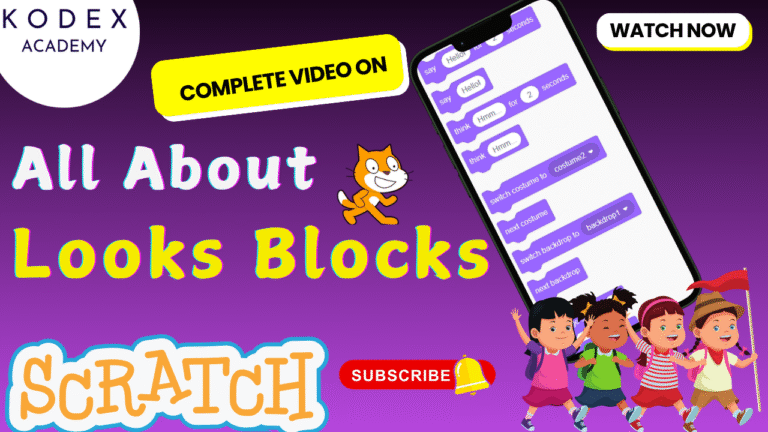
Looks Blocks in Scratch: Introduction
Welcome to this ultimate Scratch tutorial focused on Looks blocks—the essential building blocks for adding visual flair to your animations, games, and interactive stories. Whether you're studying Scratch programming for beginners, working on Scratch game design basics, or aiming to create a visual effects Scratch programming masterpiece, this guide has you covered.
In this article, you'll find step-by-step explanations, live coding examples, and practical tips. Plus, we'll explore how Looks blocks integrate seamlessly with other Scratch programming concepts for full creative control.
What You Will Learn
By following this tutorial, you will:
- Understand the purpose and functionality of Scratch Looks blocks in animation and game design.
- Learn how to use Say and Think blocks to make sprites communicate and express thoughts.
- Control sprite appearances using Costume and Backdrop switching blocks.
- Manipulate sprite sizes and layering for dynamic visual effects.
- Apply and customize a variety of visual effects like color changes, pixelation, ghosting, and more.
- Control sprite visibility using Show and Hide blocks.
- Combine Looks blocks with other Scratch blocks such as Events, Control, and Sensing to create interactive animations and games.
- Explore best practices for scripting efficient and visually appealing projects.
- Gain confidence to start designing your own animations, interactive stories, or beginner-level games.
Who Can Learn From This Tutorial?
This tutorial is perfect for:
- Absolute beginners taking their first steps in Scratch programming and wanting to understand how to animate sprites effectively.
- Young learners and students who want to create interactive stories and games with visual effects.
- Educators and parents looking for clear guidance on teaching Scratch animation basics.
- Hobbyists and aspiring game designers eager to explore visual scripting and graphic effects in Scratch.
- Scratch enthusiasts wanting to improve the polish and visual appeal of their projects.
- Anyone preparing for Scratch competitions or classroom assignments focusing on Scratch game design basics.
👉 Watch the Full YouTube Tutorial Here:
Understanding Look Blocks in Scratch | Visual Effects for Games & Animations | Kodex Academy
Why Looks Blocks Matter
Looks blocks form the visual core of your Scratch projects. Unlike Motion blocks that move sprites, Looks blocks transform the sprite's appearance, expression, and presence on the stage. Whether you're creating a Scratch interactive animation or designing a game, these blocks help you tell a story through visuals.
By mastering Looks blocks, you unlock the ability to:
- Add dialogue and personality to sprites.
- Change costumes to show different states or emotions.
- Switch backdrops to set scenes and mood.
- Apply exciting visual effects to create eye-catching animations.
- Control when and how sprites appear or disappear on screen.
- Organize sprites in layers to maintain visual hierarchy.
1. Say & Think Blocks: Dialogue & Thought
The basic Say and Think blocks let sprites communicate or show internal thought.
say [text] for [seconds]: Displays a speech bubble for a fixed time.say [text]: Displays until another say/think is called.think [text] for [seconds]: Thought bubble for fixed time.think [text]: Persistent thought bubble.
Why use them? Great for dialogue in story animations, character thought or internal monologue. Mix with Control blocks to create interactions.
Example script:
when green flag clicked
say [Welcome to my game!] for (2) seconds
wait (1) sec
think [Hmm… what should I do next?]
2. Costume & Backdrop Controls
These blocks are essential for Scratch animation blocks, enabling visual changes:
switch costume to [costume-name]: Set a specific costume.next costume: Cycle to the next costume.switch backdrop to [backdrop]: Change stage background.next backdrop: Move to next backdrop.
Sprites can have multiple costumes (e.g. walking, jumping). Backdrops let you set scenes (forest, space, etc.).
Sample: when I receive [Level 2] switch backdrop to [Space Scene v] switch costume to [Hero Flying v]
3. Size & Layering Controls
Control sprite size and layering for dynamic presentation:
change size by [value]: Adjust size relatively.set size to [value]%: Set exact size.go to front layer/go to back layer: Move completely forward or backward.go [forward/back] [n] layers: Adjust relative layering.
Example: when green flag clicked set size to (50)% go forward (1) layers
4. Visual Effects: Color, Pixelate, Ghost & More
Scratch offers powerful graphic effects through Looks blocks:
change [effect] effect by [value]: relative adjustments.set [effect] effect to [value]: absolute settings.- Effects include: color, fisheye, whirl, pixelate, mosaic, brightness, ghost.
clear graphic effects: reset effects to normal.
Use Change Color Effect by 25, as shown in the Kodex video, to rotate your sprite through hues. Or combine multiple effects for stunning results:
repeat (10)
  change [color v] effect by (25)
  change [ghost v] effect by (10)
  wait (0.2) sec
end
clear graphic effects
5. Show/Hide and Layer Management
To control visibility and layering:
show: sprite appears.hide: sprite disappears.- Layer blocks let you place sprites in front or behind.
These are key in games where sprites (e.g. UI elements, menus) should appear or vanish.
Example: when I receive [Show Menu] show go to front layer when I receive [Hide Menu] hide
6. Scripting With Looks Blocks: Complete Example
Let's build a mini-animated interactive scene using Looks blocks.
Scenario: Hero sprite introduces, thinks, changes costume, changes backdrop, pulsates, and fades out.
when green flag clicked
switch backdrop to [Forest v]
switch costume to [Hero Idle v]
say [Hello, I'm Hero!] for (2) seconds
wait (1) sec
think [What adventure awaits...?] for (2) seconds
switch costume to [Hero Walking v]
repeat (5)
  next costume
  move (10) steps
  wait (0.2) sec
end
switch backdrop to [Castle v]
set size to (120)%
repeat (10)
  change [color v] effect by (15)
  change [ghost v] effect by (10)
  wait (0.1) sec
end
clear graphic effects
show
go to front layer
wait (2) sec
hide
7. Enhancements & Best Practices
✅ Use Broadcast Messages
Trigger Looks actions across multiple sprites: when I receive [Start Cutscene] sprite1: say [...] sprite2: think [...]
✅ Combine with Control Blocks
Use loops, conditionals, and wait blocks to control timing and interactivity.
✅ Use Custom Blocks (My Blocks) for Repetition
If you reuse Look sequences (e.g. fade-in), encapsulate them.
✅ Manage Performance
Avoid stacking too many effects continuously; use clear graphic effects to reset your sprite to maintain performance and clarity.
✅ Accessibility & Readability
Ensure text contrasts well over backdrops, bubbles don't obscure important visuals.
✅ Layering Tips
Using layer controls enables depth perception in animations—key for storytelling or gameplay aesthetics.
Final Thoughts
Mastering Looks blocks unlocks a new dimension in your Scratch programming journey. You gain full control over how your sprites appear, interact, and enchant your audience through visuals. Whether you're building an animated story, a colorful game, or interactive art, Looks blocks are the key to vivid, dynamic projects.
If you're just starting or ready to deepen your Scratch skills, practice the examples here, watch the Kodex Academy video, and experiment with your own creations. Happy scratching!
Call to Action
- Don't forget to check out the full video tutorial by Kodex Academy here: Understanding Look Blocks in Scratch | Visual Effects for Games & Animations | Kodex Academy
- Like, comment & share the video
- Visit kodexacademy.com
- Subscribe to the Kodex Academy YouTube channel for deeper Scratch content.
Learn More with Kodex Academy
At Kodex Academy, we're passionate about helping students learn coding in creative ways. This project teaches more than Scratch—it empowers young minds to build tools that work in the real world.
Explore more:
Stay updated with new content, free tutorials, and coding challenges!
- 🌐 Website
- 💬 WhatsApp Channel: Join Now
- 💼 LinkedIn: Kodex Academy
- 📸 Instagram: @kodex_academy
- 🐦 Twitter: @Kodex_Academy
- 📢 Telegram: Join Our Channel
- 💝 Patreon: patreon.com/KodexAcademy
Further Reading & Links
- Scratch Wiki Motion Blocks: https://en.scratch-wiki.info/wiki/Motion_Blocks
- Scratch Programming for Beginners: https://scratch.mit.edu/projects/editor
- Scratch Animation Guide: https://en.scratch-wiki.info/wiki/Animating